
I’m pleased to announce the next major release of Aurora. The two main themes of this release are:
- Expanding on the foundational work of the previous releases around color tokens, painters and shapers
- The introduction of a brand new skin, Blueprint (image above)
Among the many other new features and bug fixes in this release:
Aurora focuses on helping you make elegant and high-performing desktop applications in Compose. If you’re in the business of writing just such apps, I’d love for you to take this Aurora release for a spin.
It gives me great pleasure to announce the next major release of Radiance. The two main themes of this release are:
- Expanding on the foundational work of the previous release around color tokens
- Stability and bug fixes
Let’s get to what’s been fixed, and what’s been added. First, I’m going to use emojis to mark different parts of it like this:
 marks an incompatible API / binary change
 marks new features
 marks bug fixes and general improvements
Theming
Components
Radiance focuses on helping you make elegant and high-performing desktop applications in Swing. If you’re in the business of writing just such apps, I’d love for you to take this Radiance release for a spin. Click here to get the instructions on how to add Radiance to your builds.

It’s been three years since the last Aurora release, and today I’m happy to announce its next major update.
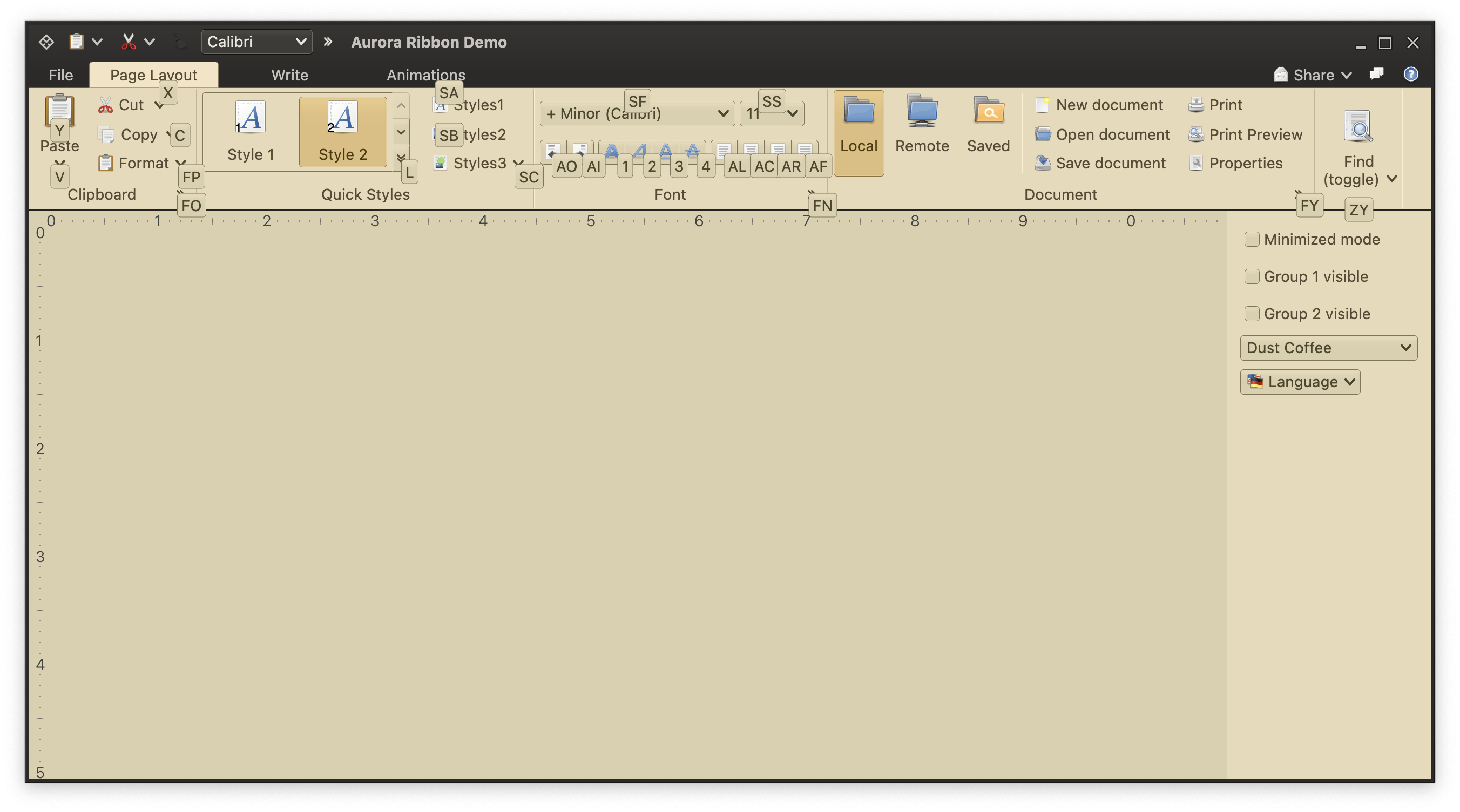
It took a bit of time to get here, but I’m hoping it was worth the wait. The first main addition in this release is the full-featured ribbon container that provides the functionality of the Microsoft Office command bar. It supports regular and contextual ribbon task groups, regular and flow ribbon bands, application menu, taskbar, and anchored command area. It also supports flexible and configurable resizing of the content for ribbon tasks, ribbon bands, and individual ribbon content pieces.
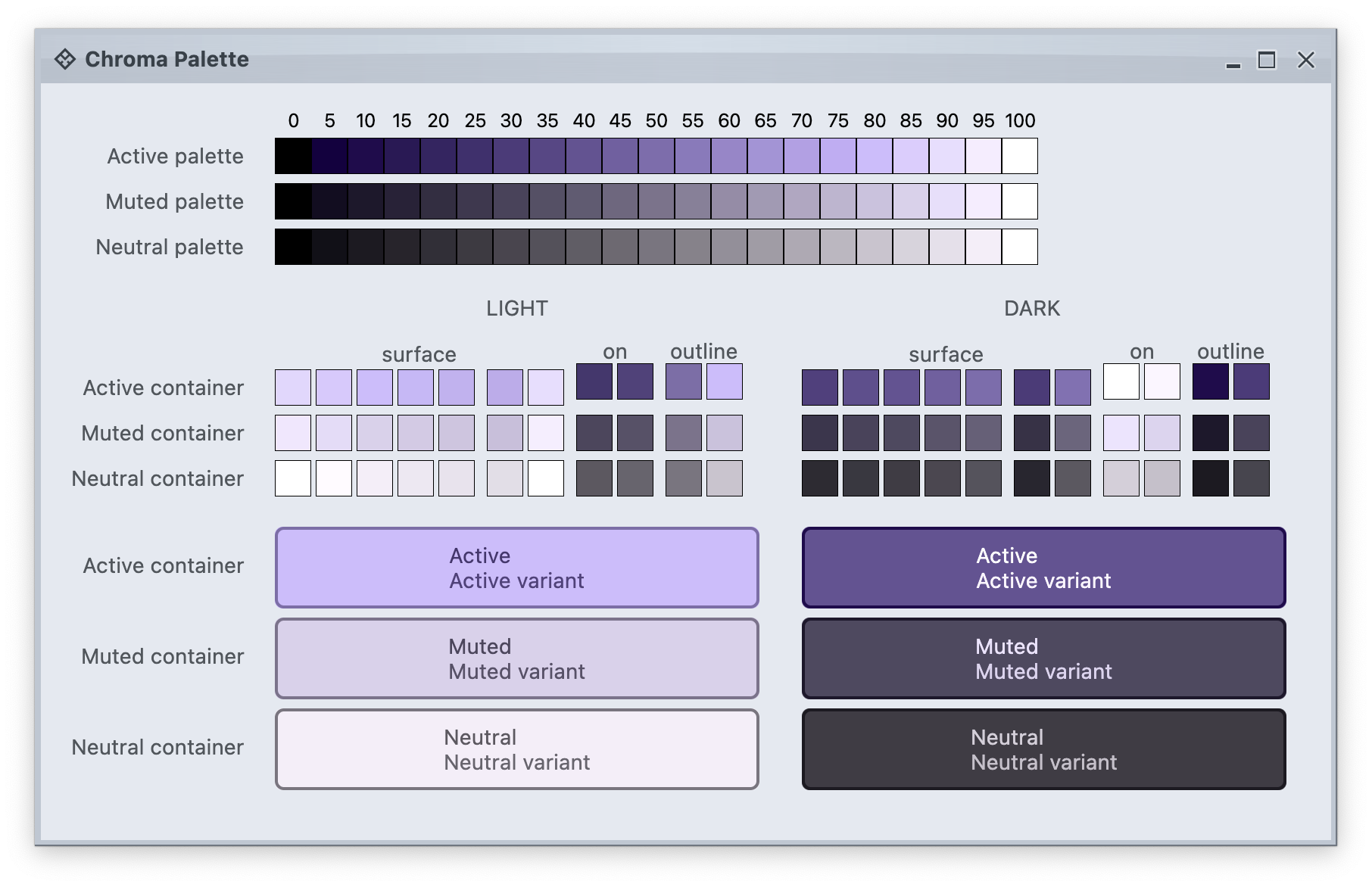
The second main addition is the full alignment with the changes that went into Radiance in the last year. Aurora 2 uses the Chroma color system from the Ephemeral design library, which builds on the core foundations of the Material color utilities.
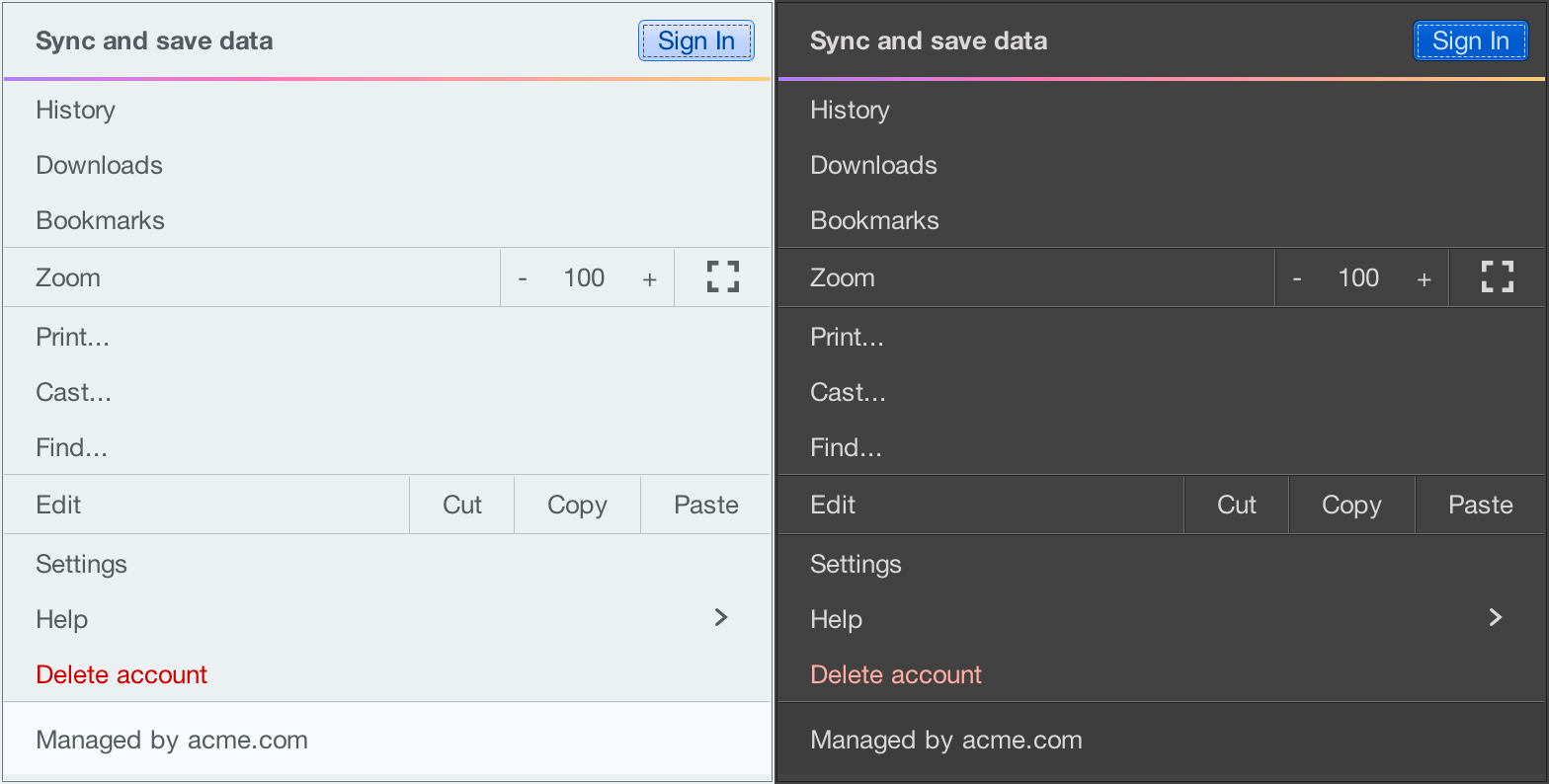
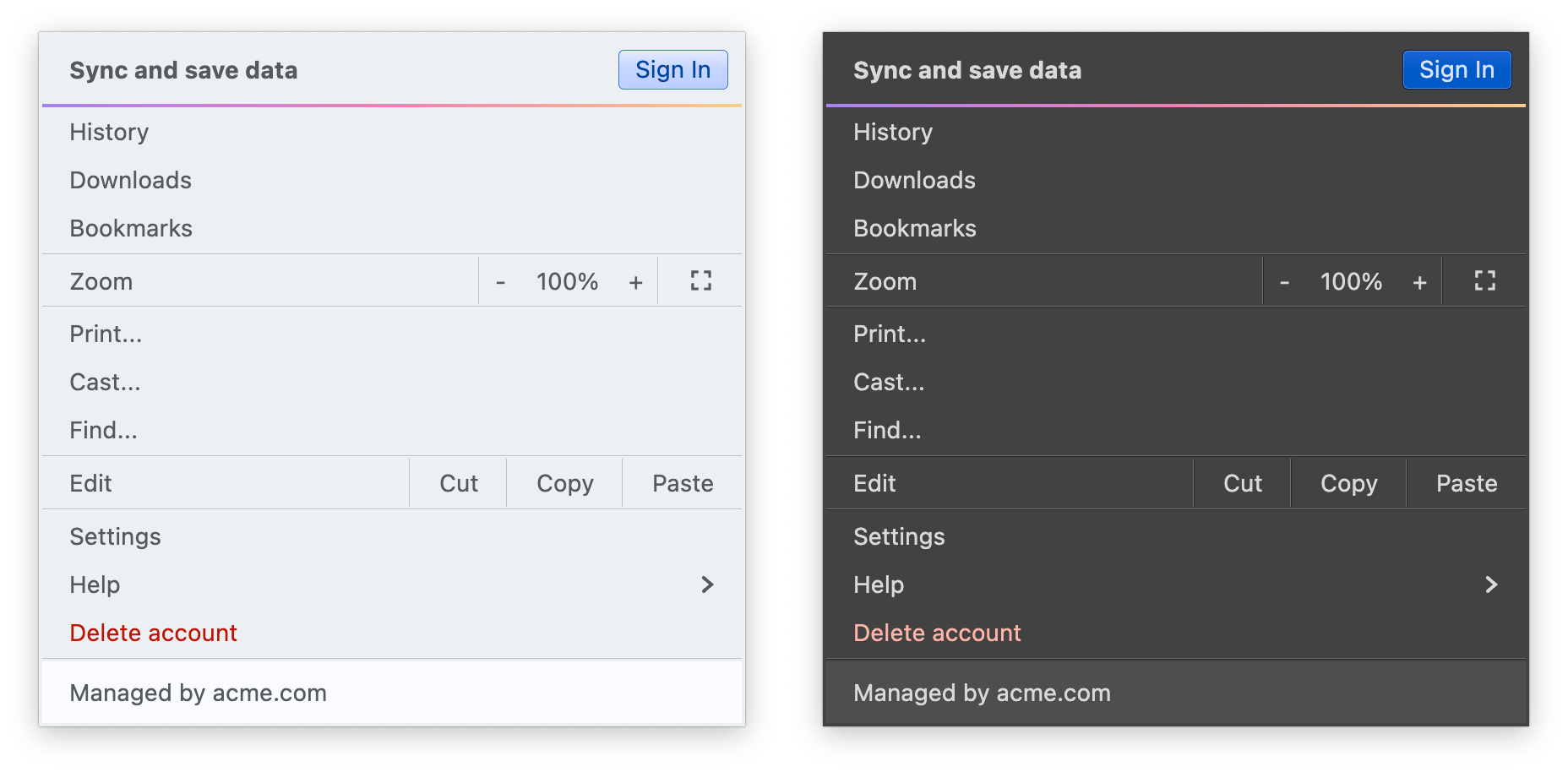
It introduces APIs for system tokens – info, warning, error, and success – that can be applied to any element in the UI hierarchy, like shown here for the “Sign In” button (info styling) and “Delete account” (error styling), seamlessly adapting to light and dark skins:
In addition to streamlining the painter APIs, this version adds new surface and outline painters that emulate the appearance of a 3D glass object lit from straight above, as can be seen here under the Mist Silver skin on buttons, combo boxes and other components:
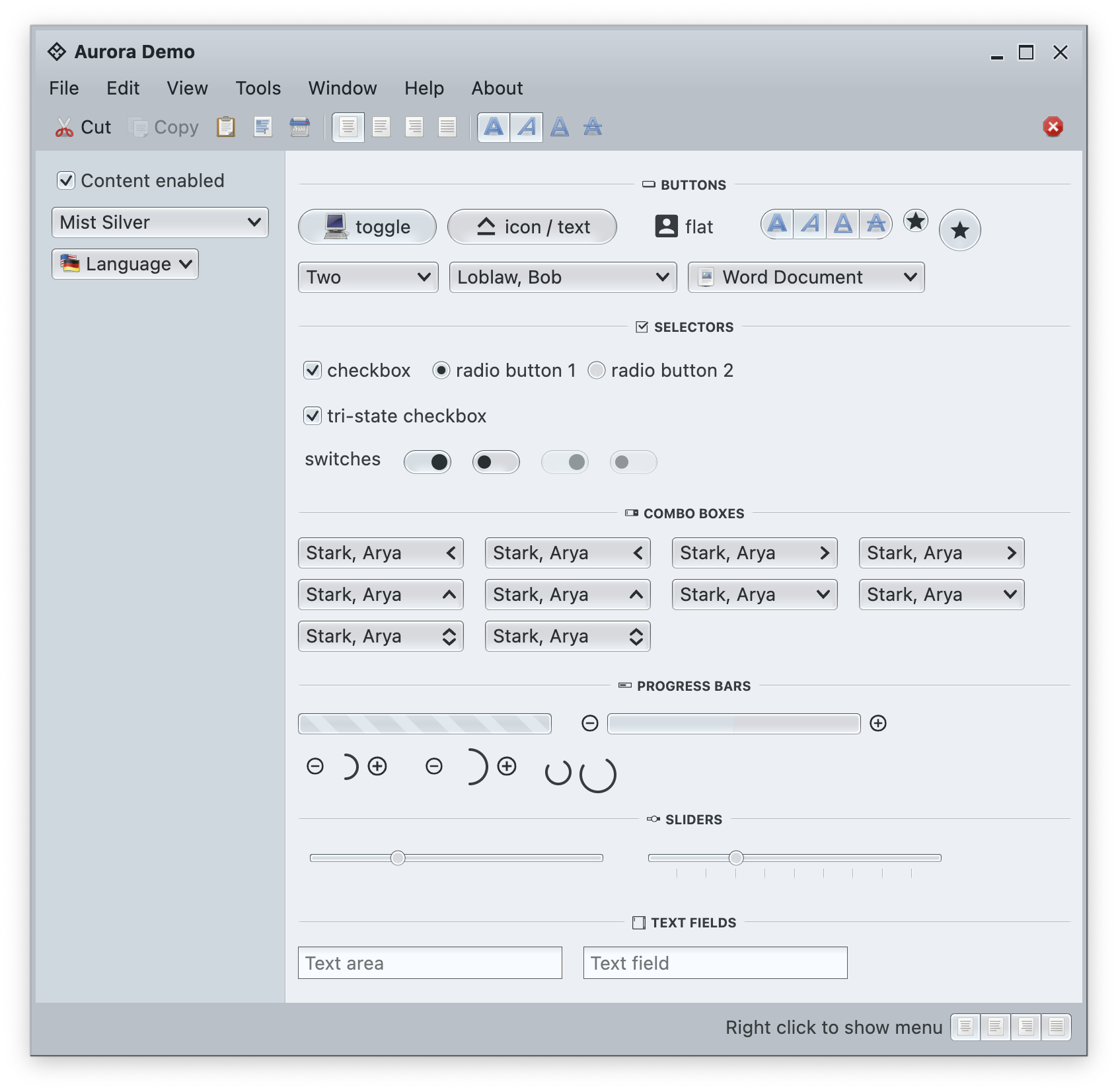
Among the many other, smaller improvements in this release you will find:
The next couple of years are shaping up to be quite exciting for both Aurora and Radiance. If you’re in the business of writing desktop Compose apps, I’d love for you to take Aurora for a spin. Stay frosty for more features coming in 2026!
Picking up where the second part ended, let’s take another look at the same application UI rendered by Radiance and its new Chroma color system, in light mode and in dark mode:
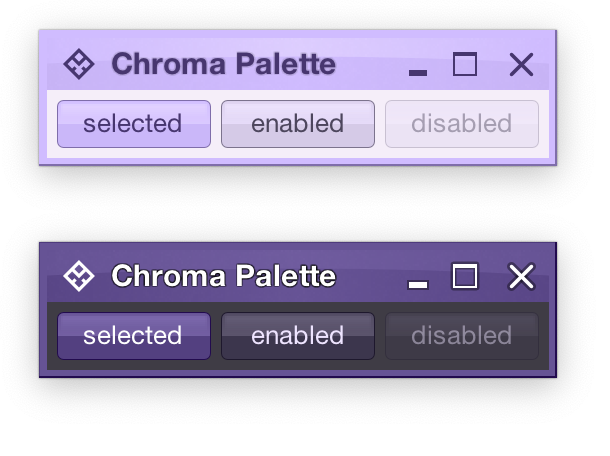
Recapping, Radiance has three types of containers – active, muted, and neutral. In this particular UI, the selected toggle button is drawn as an active container. The enabled button is drawn as a muted container. And the panel that contains the buttons is drawn as a neutral container.
Each container has three parts – surface, outline, and content. Radiance provides multiple color tokens to draw these parts, giving the apps the flexibility to choose a flat look, a gradient look, or any other custom look. In the particular example above, the surface part of each button (inner fill) is drawn with a vertical gradient that emulates the appearance of shiny plastic.
Let’s see how this approach extends to other Swing components rendered by Radiance
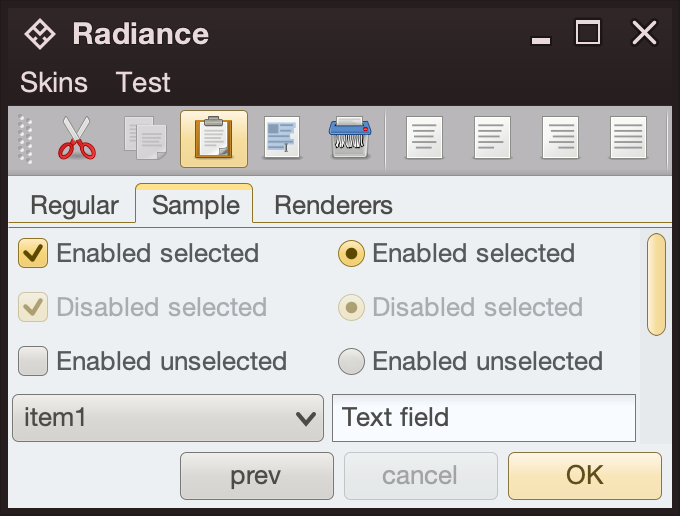
- The title pane and the menu bar are drawn as neutral containers, using dark brown as the seed color for the surface tokens
- The toolbar is also drawn as a neutral container, using medium gray as the seed color for its surface tokens
- The active tab is drawn with a combination of surface color tokens for the active container (the top yellow strip) and outline color tokens for its outline
- Selected checkboxes and radio buttons are drawn as active containers, same as the default “OK” button
- The scrollbar is also drawn as an active container
- The combobox is drawn as a muted container
- The text field is drawn as a neutral container, using a different / lighter surface color token for its inner fill

The same approach extends to renderer-based containers, such as the tree on the left and the list on the right
- The striped background is drawn with surface color tokens of a neutral container, alternating between
containerSurface and containerSurfaceHigh
- The highlights are drawn with surface and outline color tokens of an active container
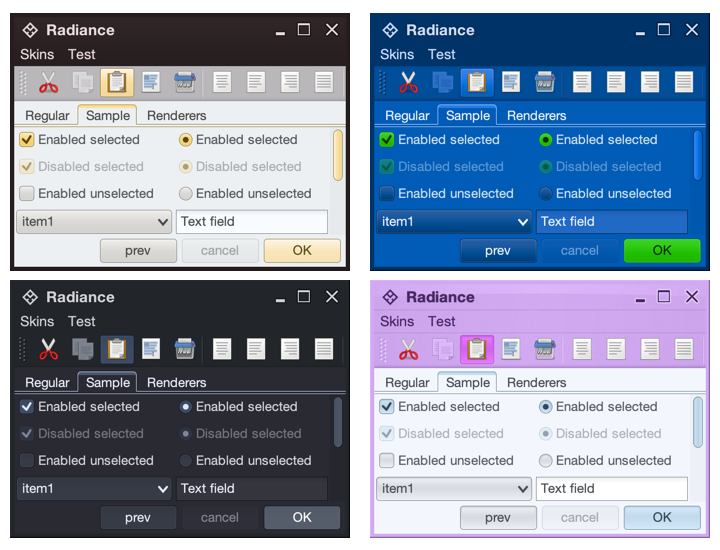
The usage of containers and color tokens is not skin-specific. The UI delegate for a specific Swing component, let’s say a button, does this:
- Get the surface painter and the outline painter from the current skin
- Determine the decoration area type of this component (menu bar, toolbar, control pane, footer, etc)
- Ask the skin for the container color tokens that match the decoration area type and designated container type. For example:
- The button UI delegate will ask for neutral container tokens for enabled buttons, or for active container tokens for buttons in active states (selected, rollover, pressed, etc)
- The checkbox UI delegate will ask for neutral container tokens for an unselected checkbox, or for active container tokens for active checkbox (selected, rollover, pressed, etc)
- The scrollbar UI delegate will always ask for active container tokens – as a design choice in Radiance
- Ask the surface painter to draw the inner part of the component using the obtained color tokens
- Ask the outline painter to draw the outline of the component using the obtained color tokens
What is achieved by this separation?
- Each skin defines its own colors for the different decoration area types, such as the purples for the title pane, the menu bar and the toolbar in the bottom right screenshot under the Nebula Amethyst skin.
- Each skin also defines the overall visuals of surfaces and outlines across all components, enforcing consistent application of visuals across buttons, comboboxes, scroll bars, checkboxes, etc.
- And at the same time, each component and its Radiance UI delegate is responsible for deciding how it combines the colors defined by the skin (for each decoration area type) and the visuals defined by the skin’s painters to draw its own distinct appearance.
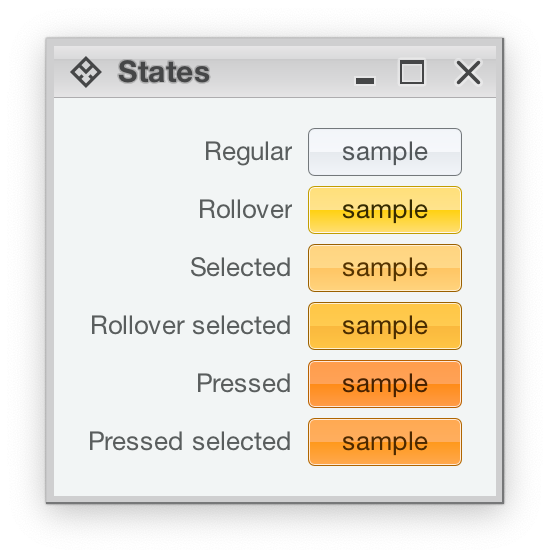
Radiance also provides support for using different color seeds for different active states. Seen above is the Office Silver 2007 skin and the visuals for the same button under rollover, selected, rollover + selected, pressed, and pressed + selected states. The application of the inner gradient fill is consistent, provided by the skin’s surface painter. The application of the outline visuals, including the slightly lighter inner outline, is consistent as well – since the skin’s outline painter uses the same color tokens – but from different color seeds provided by the skin.
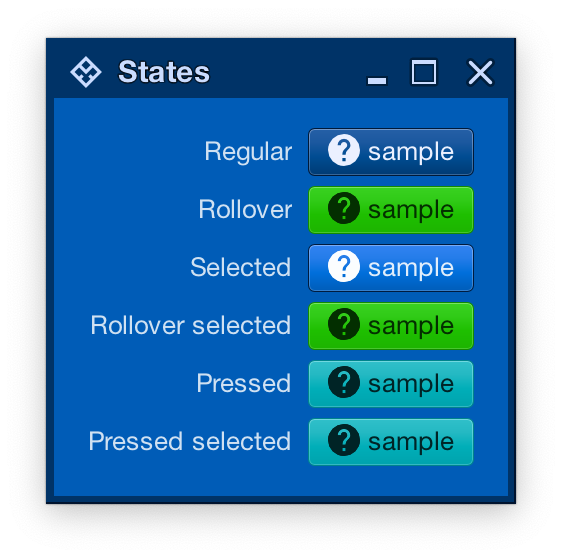
And the same skin can mix light and dark visuals for different active states in the same decoration area type. Here, under the Magellan skin, components in rollover, rollover + selected, pressed, and pressed + selected states use light fill and dark content (text and icon), while the same component in the selected state uses dark fill and light content.
In the next post we’ll take a look at the flexibility provided by multiple surface color tokens, and how they can be used to build up a visual hierarchy of content in your applications.
