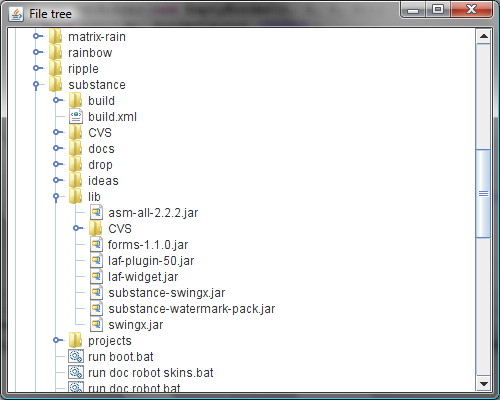
JTree component is very well suited for showing the contents of your file system. In this entry, i’m going to show how you can do it, pointing out a few interesting issues along the way.
The full source for this example can be found here. It contains the following functionality:
The FileSystemView object to query the contents of the local file system.
The FileTreeCellRenderer to render the single file cell. It has two caches, one for storing the file icon, and another for storing system name for file system root. The second one if very important for performance since on some systems the call to FileSystemView.getSystemDisplayName can take considerable time. Note how we use the FileSystemView.getSystemIcon to show the system-consistent file icon (see screenshot below).
The FileTreeNode to present a single tree node. Note that the JTree implementation will not create the entire model (which is very good for the initial state where all the file system roots are collapsed).
The main panel that creates the tree, sets the model and the renderer and wraps the tree in a scroll pane. Note that we use File.listRoots to get the file system roots and JTree.setRootVisible(false) to remove the main tree root (so that we have “multi-root” tree, with each file system root being a top-level tree node) – see screenshot below.
SwingX features a very useful API on the JXPanel. The setAlpha allows setting the alpha (translucency / opacity) value for the panel and all its children. For example, if you want all the child components to be painted with 50% translucency, call myJxPanel.setAlpha(0.5f) and you’re done. As a side note, you can have nested JXPanels; in this case the lowest value wins (see the implementation of JXPanel.getEffectiveAlpha). So, if the outer panel has 0.6 alpha, and the inner panel has 0.4 alpha, the children of the inner panel will be painted with 40% opacity (not 0.6*0.4 = 24% opacity).
One case in which you need to be aware of this setting is when you override the paint or paintComponent and use custom composites. In such a case, you need to respect the current composite set on the Graphics object passed to the paint method(s). The current implementation of JXPanel.paint uses the SRC_OVER alpha composite, and if this is what you’re using as well, you can call the following helper method to compute the “combined” composite to set during your custom painting routine:
As you can see, the implementation is pretty straightforward, combining the alpha already set on the Graphics with the one passed to the method. The special case where both are 1.0f simply returns AlphaComposite.SrcOver.
Note that if you’re using a composite different from SRC_OVER, you’ll have to create a temporary image, paint on it and then paint that image back onto the original Graphics (that has the composite of the JXPanel alpha).
The “Support for SwingX components” series (parts i, ii, iii, iv, v, vi, vii and viii) showed the the support for SwingX components in Substance look and feel, while the “Advanced animations on core Swing components” series (parts i, ii, iii and iv) showed the extensive enhancements to the animations done on the core Swing components. This entry shows the extended animations available on the JXMonthView component in the latest drop of the Substance SwingX plugin.
With the great help of Jan Haderka of SwingX project (see the progress on this issue), the JXMonthView now features complete rollover and selection animations which are fully consistent with animations on core JLists, JTrees and JTables. The first video shows different rollover and selection animations on a month view component under the Office Silver 2007 skin. Note how the animations respect different state-specific color schemes and alpha values.
The second video shows the same month view component under the dark Raven Graphite skin:
The last video shows the same month view component under the dark Magma skin. Note the rollover and selection animations are done on both the background and the foreground colors. Also note that the animations are done on the individual days as well as on the month view header (which now uses drop-shadow painting of the month / year strings):
This is the fourth part in the ongoing series about advanced animations on core Swing component built-in to the latest binary drops of Substance look-and-feel.
The first part showed rollover and selection background animations on menus, sliders, tables and table headers
The second part showed rollover foreground animations on menus under a skin that uses dark background fill on menubars
The third part showed rollover and selection background and foreground animations under a mixed dark-light theme
This part demonstrates the animations under the new Magma skin. Unlike other mixed dark-light skins (Nebula, Nebula Brick Wall and Business Black Steel), pretty much all animations under Magma feature dark-light transitions for both background and foreground colors. Here is a sample video that shows animation effects on buttons, toggle buttons, checkboxes and radio buttons (note that for the later two, the foreground is not animated):
The next video shows rollover animation effects on Magma sliders:
The last video shows a complex rollover animation effect on Magma tabs. Substance provides support for tab close buttons. When installed, Substance shows the close buttons on the currently selected and the currently rolled over tab. On rolled over tabs, the close button is faded as the mouse moves over the tabbed pane. For Magma, this means that the close button animation has two channels – during the fade in, the color fades from white to black, and the alpha fades from 0.0 to 1.0. During the fade out, the color fades from black to white, and the alpha fades from 1.0 to 0.0. The video shows the rollover animation sequence under very slow animation speed so you can follow this effect:
You can run a test WebStart application by clicking the button below. The application is signed and requires read-only access to the local disk (for the filetree). In order to switch to Magma, go to the Skins menu and select “Magma”.